
How to Remove Objects From Photos on iPhone (iOS 18 Clean Up vs Free AI Web Tool)
आईफोन पर फोटो से अनचाहे ऑब्जेक्ट कैसे हटाएं (iOS 18 और फ्री वेब टूल)
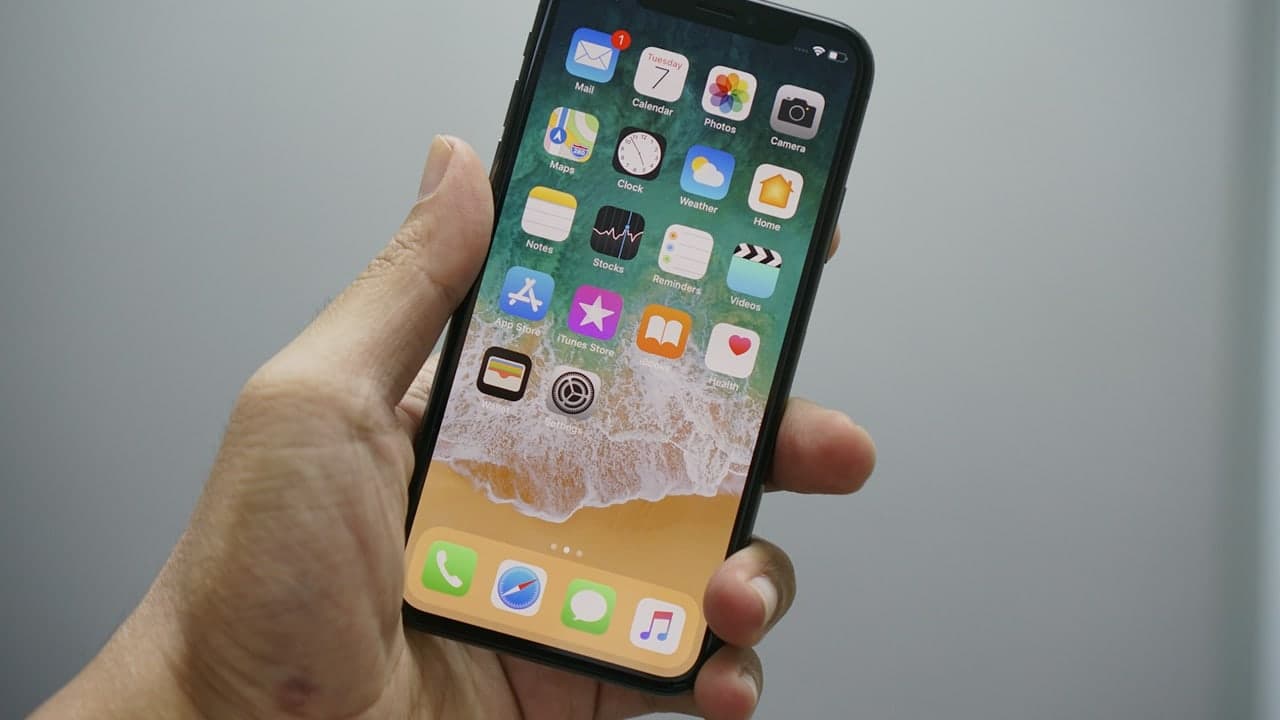
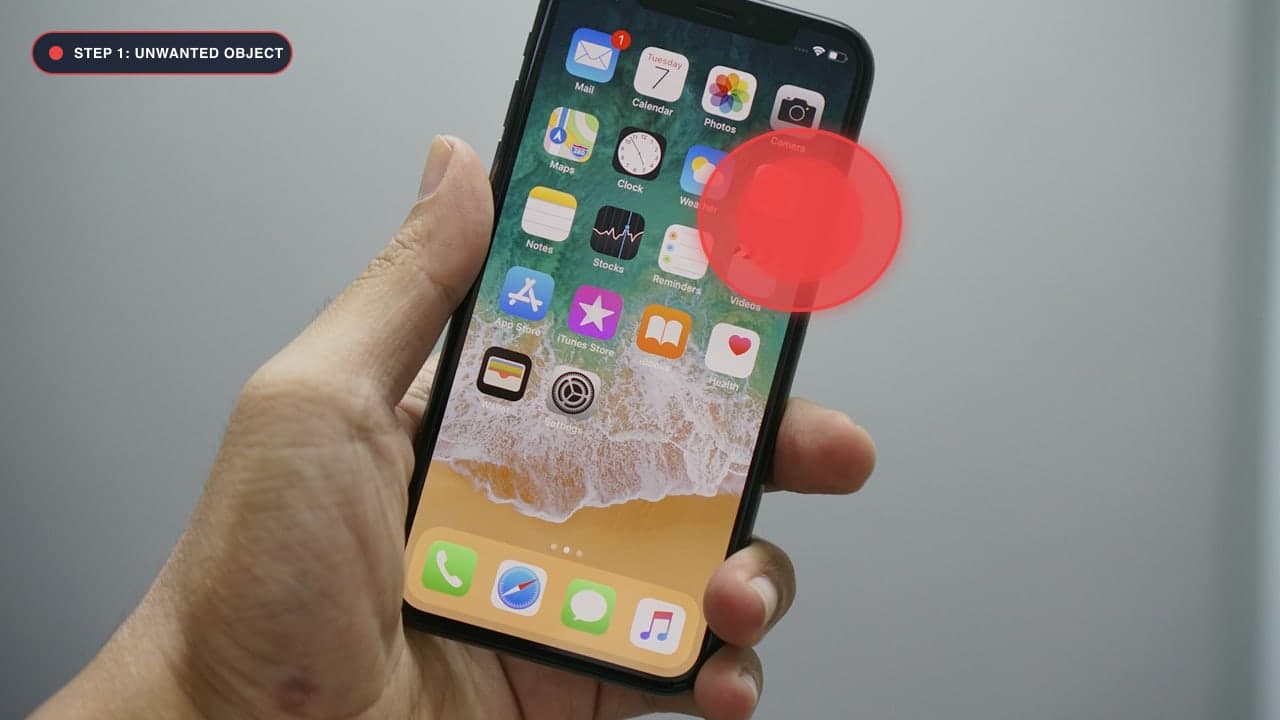
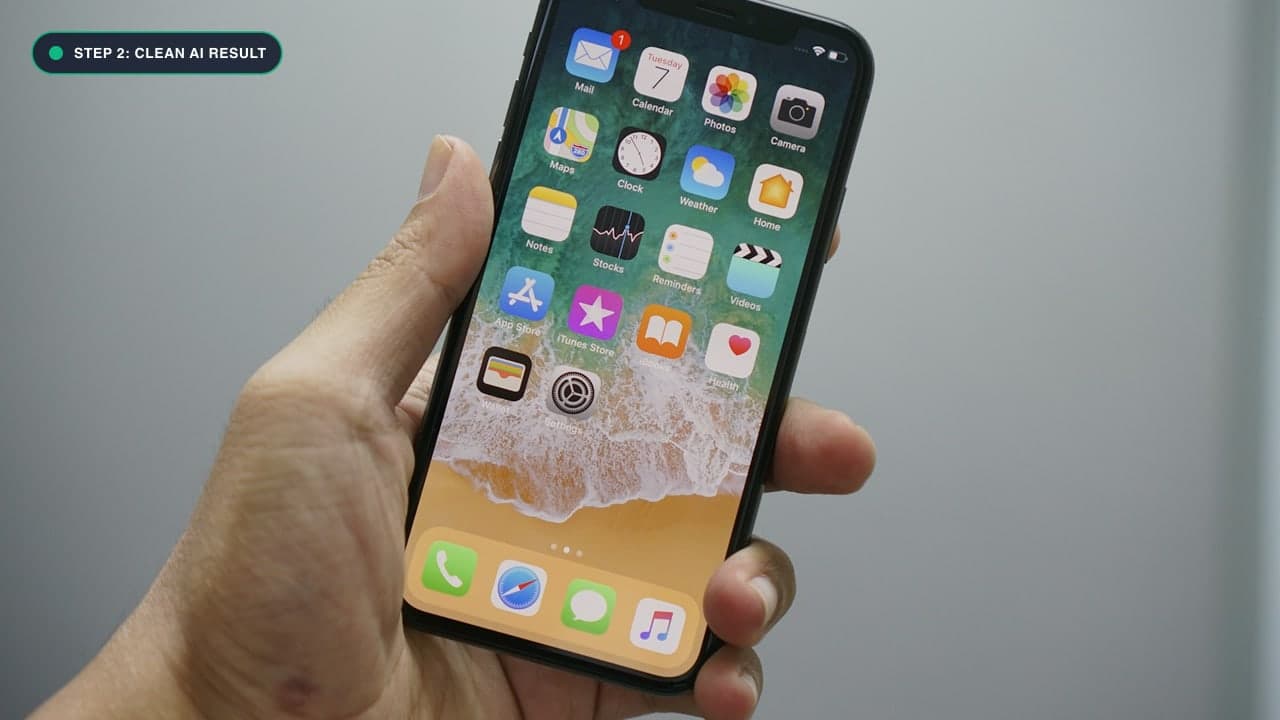
The Mobile Dilemma: Erasing Objects on iPhone
With every new iOS release, Apple pushes the envelope of computational photography. With iOS 18.1, Apple introduced the "Clean Up" tool in the native Photos app. However, Apple's native Clean Up feature comes with major restrictions:
- Device Exclusivity: It strictly requires Apple Intelligence, meaning it only functions on the iPhone 15 Pro, iPhone 15 Pro Max, and iPhone 16 series.
- Zero Support for Older iPhones: If you own an iPhone 11, 12, 13, 14, 15 base, or iPhone SE, you are completely locked out of native object removal.
- Predatory App Store Subscriptions: Third-party iOS apps like TouchRetouch, PhotoRoom, or Eraser frequently trick users into $9.99/week recurring subscriptions or plaster giant watermarks over your edited pictures.
Fortunately, there is a superior, 100% free solution that works seamlessly on every single iPhone model ever made: our browser-based Magic Eraser Tool.
Method 1: The Universal Free Browser Method (Any iPhone Model)
You do not need to install any apps from the App Store or create an account. You can remove objects directly inside mobile Safari:
Step 1: Open Safari on Your iPhone
Launch Safari and navigate to ObjectRemover.in/remove-object-from-photo.
Step 2: Upload Direct from Photo Library or Camera
Tap Upload Image. iOS will open the native file picker, giving you three convenient options:
- Photo Library: Select any picture or screenshot saved on your device.
- Take Photo: Snap a picture directly with your camera.
- Choose File: Pick a RAW, PNG, or high-resolution file from the Files app or iCloud Drive.
Step 3: Use Your Finger as the Magic Brush
Our interface is fully optimized for mobile touchscreens with responsive touch-gesture smoothing:
- Use the slider at the top to adjust your brush diameter.
- Simply drag your finger over the stranger, trash can, reflection, or text you want to vanish.
- If you make a mistake, tap Undo to step back.
Step 4: Erase and Save to Camera Roll
Tap Remove Object. In less than two seconds, the AI inpainting model processes your request. Tap Download Image, and iOS Safari will save the full-resolution edited image directly to your iPhone Downloads folder or Photos app.
iPhone Power Tip: To use ObjectRemover just like a native iOS app, tap the Share button in Safari (the square with the arrow pointing up) and select Add to Home Screen. You now have a 1-tap dedicated app icon on your iPhone home screen!
Method 2: Apple Photos "Clean Up" (iPhone 15 Pro & iPhone 16 Only)
If you own an iPhone 15 Pro or iPhone 16 running iOS 18.1 or later with Apple Intelligence enabled:
- Open the native Photos app.
- Select your photo and tap the Edit button (three sliders icon).
- Tap the Clean Up icon (eraser symbol with sparkles).
- Tap, circle, or brush over the unwanted object.
- Tap Done to commit the changes.
Limitations of Apple Clean Up Compared to ObjectRemover.in:
- Aggressive Downscaling: Apple Clean Up often reduces the sharpness of fine micro-textures around the edit border.
- Limited Hardware Support: Over 85% of active iPhone users worldwide cannot run Apple Intelligence.
- No Manual Advanced Controls: ObjectRemover.in gives you granular brush size control, multi-pass erasing, and dedicated category algorithms for People Removal and Text Removal.
आईफोन पर फोटो से अनचाहे ऑब्जेक्ट कैसे हटाएं - हिंदी गाइड (Bilingual Hindi Section)
आईफोन यूज़र्स के लिए मुफ़्त और सबसे आसान तरीका:
- अपने iPhone में Safari ब्राउज़र खोलें और Magic Eraser पेज पर जाएं।
- फोटो चुनें: 'Upload Image' पर टैप करें और अपनी फोटो लाइब्रेरी से तस्वीर चुनें।
- उंगली से ऑब्जेक्ट को मार्क करें: जिस भी व्यक्ति, वस्तु या दाग को हटाना है, उस पर अपनी उंगली से लाल रंग का ब्रश फेरें।
- Remove दबाएं: कुछ ही सेकंड में वह ऑब्जेक्ट पूरी तरह गायब हो जाएगा।
- Camera Roll में सेव करें: 'Download' पर टैप करके अपनी एडिट की हुई HD फोटो अपने आईफोन में सेव कर लें।
Frequently Asked Questions (FAQ)
Does this work on older iPhones like iPhone 11 or iPhone 12?
Yes! Because ObjectRemover runs in your mobile Safari browser using WebAssembly hardware acceleration, it runs at blistering speed on iPhone 11, 12, 13, 14, 15, and SE without heating up your phone.
Will my private photos be uploaded to Apple or external servers?
No. Your photo is processed locally inside your mobile browser. Your private selfies, family moments, and documents never leave your device.
Can I remove text or watermarks on iPhone?
Yes, for text, stickers, or timestamps, check out our dedicated Remove Text Tool.
Try It On Your Own Photo Right Now
अपनी फोटो से किसी भी अनचाहे ऑब्जेक्ट को हटाने के लिए नीचे दिया गया टूल आज़माएं:
Drop your photo here or browse
Supports JPG • PNG • WEBP • HEIC (Max 25MB, Native 4K)