
How to Remove Objects From Photos on Android (Samsung, Pixel, Xiaomi & Free Web App)
एंड्रॉयड फोन पर फोटो से ऑब्जेक्ट कैसे हटाएं (सैमसंग, पिक्सल और फ्री टूल)
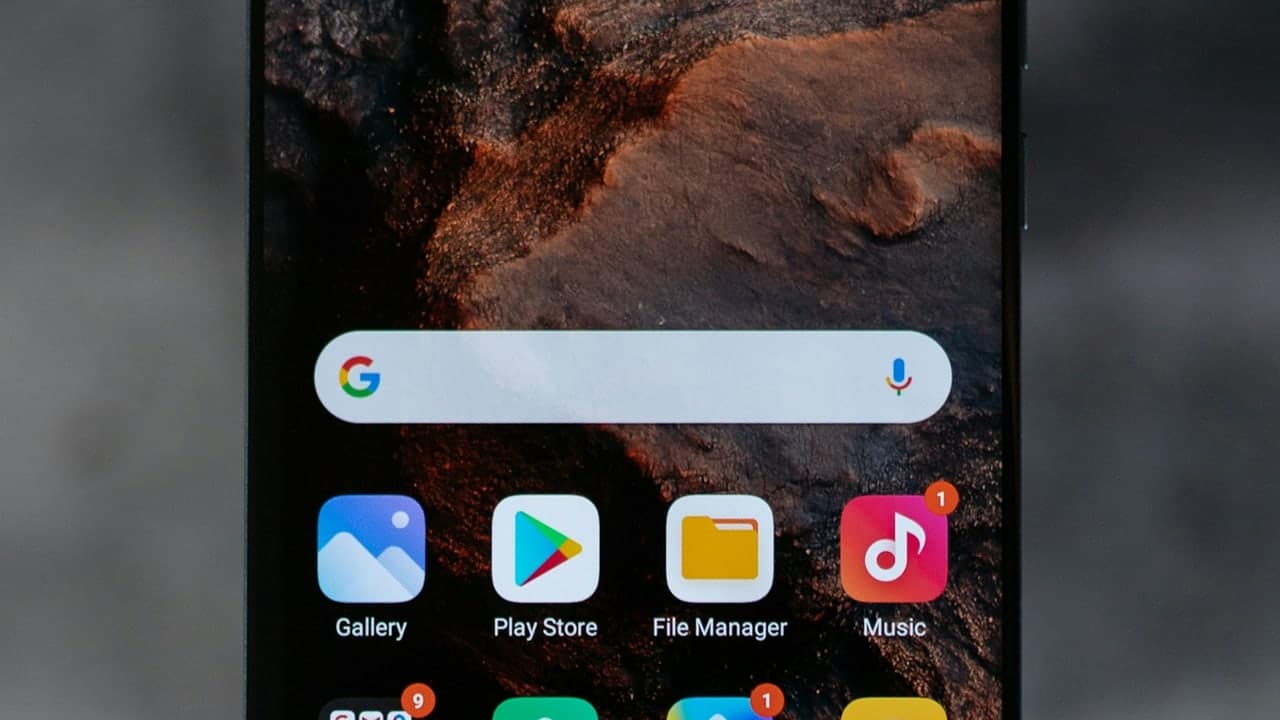
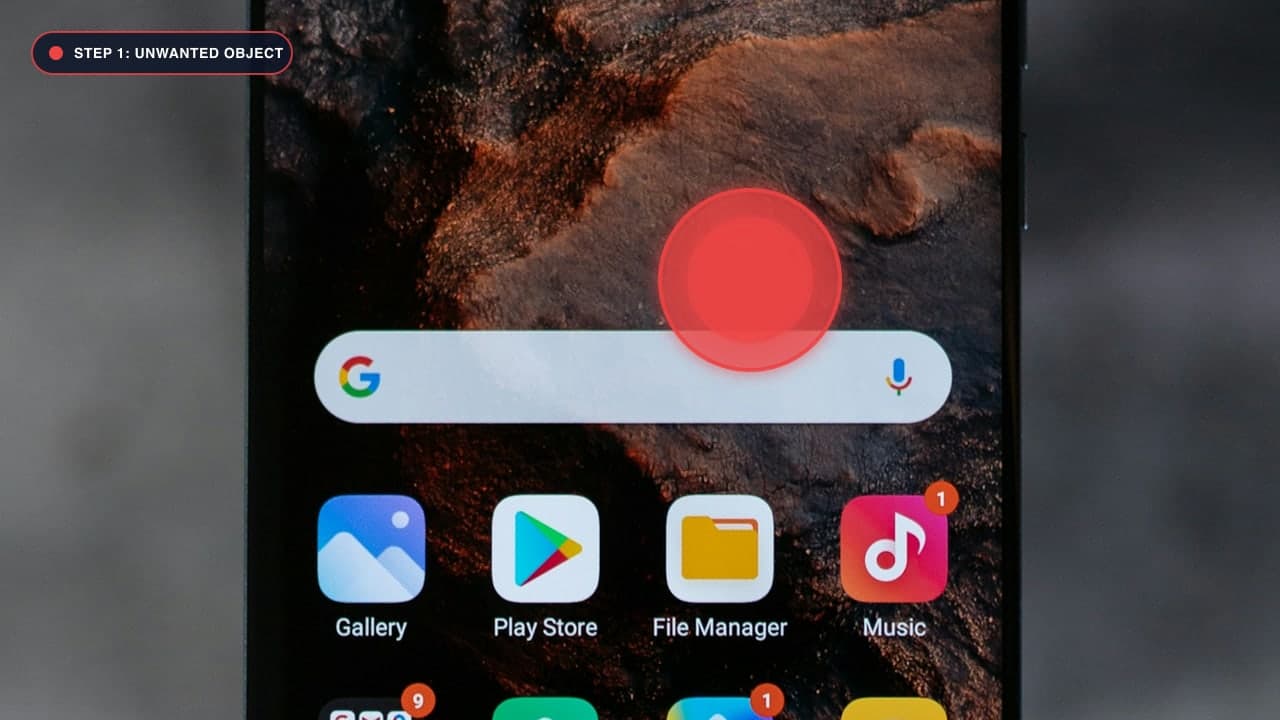
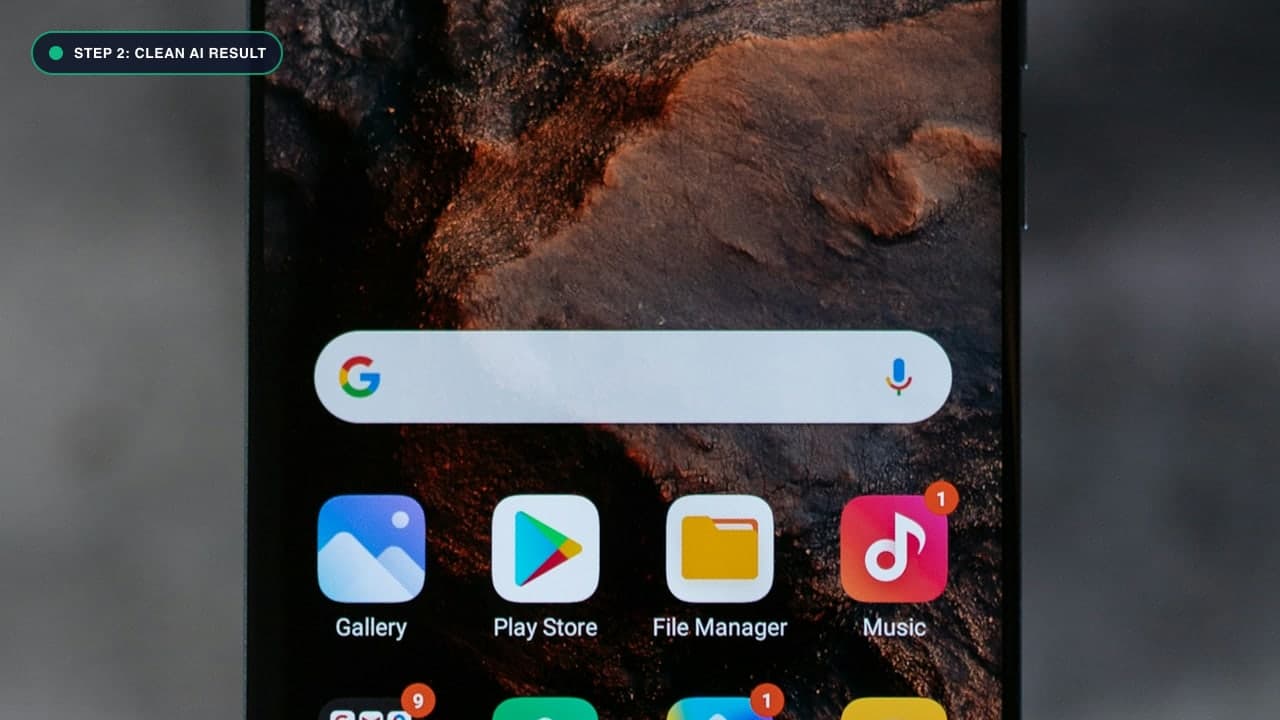
Erasing Objects on Android: Breaking Free From Paywalls
The Android ecosystem is famous for pioneering AI object removal. Google popularized the concept with its "Magic Eraser" on Pixel phones, while Samsung introduced "Object Eraser" within One UI Gallery.
However, millions of Android users face serious obstacles:
- Google Photos Paywall: On non-Pixel Android phones (Xiaomi, OnePlus, Realme, Vivo, Oppo, Motorola), Google Photos often restricts Magic Eraser behind a paid Google One cloud subscription.
- Samsung Flagship Exclusivity: Samsung's advanced Generative AI object removal is restricted to high-end Galaxy S-series phones running One UI 6.1+, leaving budget Galaxy A and M series devices with outdated, smudgy healing brushes.
- Ad-Riddled Play Store Apps: Searching "object eraser" on Google Play yields hundreds of clones stuffed with unskippable 30-second video advertisements, forced reviews, and low-quality results.
Here is the good news: you can achieve studio-grade AI inpainting on any Android smartphone or tablet 100% free through your mobile browser with our Magic Eraser Tool.
Universal Step-by-Step Tutorial for Any Android Phone
Whether you are using a $100 budget phone or a $1,500 foldable, this method works identically across Google Chrome, Samsung Internet, Brave, and Firefox:
Step 1: Open Chrome and Visit ObjectRemover.in
Navigate to our Magic Eraser Studio in your mobile browser.
Step 2: Upload Your Picture
Tap Upload Image. Android will display your file picker:
- Choose Media / Gallery to pick an existing camera snapshot.
- Choose Camera to capture a fresh photo and edit it immediately.
- Supports high-megapixel photos up to 25MB (including 50MP and 108MP camera outputs).
Step 3: Finger-Paint Over the Distraction
- Adjust the brush size using the intuitive touch slider.
- Paint smoothly over the unwanted person, street sign, power line, or photobomber.
- Android Tip: If you are removing a small object, use two fingers to pinch-to-zoom into the image for surgical brush precision.
Step 4: Click Remove and Download
Tap the purple Remove Object button. In less than 2 seconds, our neural inpainting engine synthesizes realistic background textures. Tap Download Image to instantly save the full-resolution photo to your Android Downloads or Gallery album.
Comparing Native Android Options vs. ObjectRemover.in
| Feature | Google Photos Magic Eraser | Samsung Gallery Object Eraser | ObjectRemover.in (Web) | | :--- | :--- | :--- | :--- | | Supported Devices | Pixel or Google One Subscribers | Flagship Galaxy Phones Only | Every Android Phone | | Cost | Requires Paid Google One | Free on select flagships | 100% Free Forever | | Watermarks | None | AI Watermark on corner | Zero Watermarks | | App Install | Requires Google Photos app | Built into One UI Gallery | No App Required (Web) | | Privacy | Uploads to Google Cloud | May upload to Samsung Cloud | Processed Locally in Browser |
एंड्रॉयड फोन पर फोटो से ऑब्जेक्ट कैसे हटाएं - हिंदी गाइड (Bilingual Hindi Section)
सभी एंड्रॉयड स्मार्टफोन (Samsung, Xiaomi, Realme, OnePlus, Vivo) के लिए:
- अपने मोबाइल में Google Chrome खोलें और Magic Eraser पर जाएं।
- फोटो अपलोड करें: 'Upload Image' बटन पर क्लिक करके गैलरी से अपनी फोटो चुनें।
- अनचाही चीज पर ब्रश चलाएं: जिस भी व्यक्ति, कचरे के डिब्बे या वस्तु को हटाना चाहते हैं, उस पर उंगली से लाल रंग का मास्क लगाएं।
- Remove Object दबाएं: एआई कुछ ही पलों में उस वस्तु को हटाकर बैकग्राउंड को एकदम असली जैसा बना देगा।
- गैलरी में सेव करें: 'Download' बटन दबाते ही साफ फोटो आपके फोन की गैलरी में सेव हो जाएगी।
Frequently Asked Questions (FAQ)
Can I install ObjectRemover as an app on my Android phone?
Yes! In Google Chrome, tap the three vertical dots (menu) in the top-right corner and select Install App or Add to Home screen. An ObjectRemover icon will be added to your app drawer, launching fullscreen without browser address bars!
Does this work on budget phones with 2GB or 4GB RAM?
Yes. Our WebAssembly inpainting pipeline is engineered with memory-efficient SIMD instructions, ensuring ultra-smooth performance even on entry-level smartphones.
Can I remove text and timestamps on Android?
Yes, use our specialized Remove Text Tool to erase dates, stickers, and captions.
Try It On Your Own Photo Right Now
अपनी फोटो से किसी भी अनचाहे ऑब्जेक्ट को हटाने के लिए नीचे दिया गया टूल आज़माएं:
Drop your photo here or browse
Supports JPG • PNG • WEBP • HEIC (Max 25MB, Native 4K)