
How to Remove a Photobomber From a Picture Without Ruining the Portrait
फोटो से फोटोबॉम्बर को कैसे हटाएं और अपनी तस्वीर को परफेक्ट बनाएं
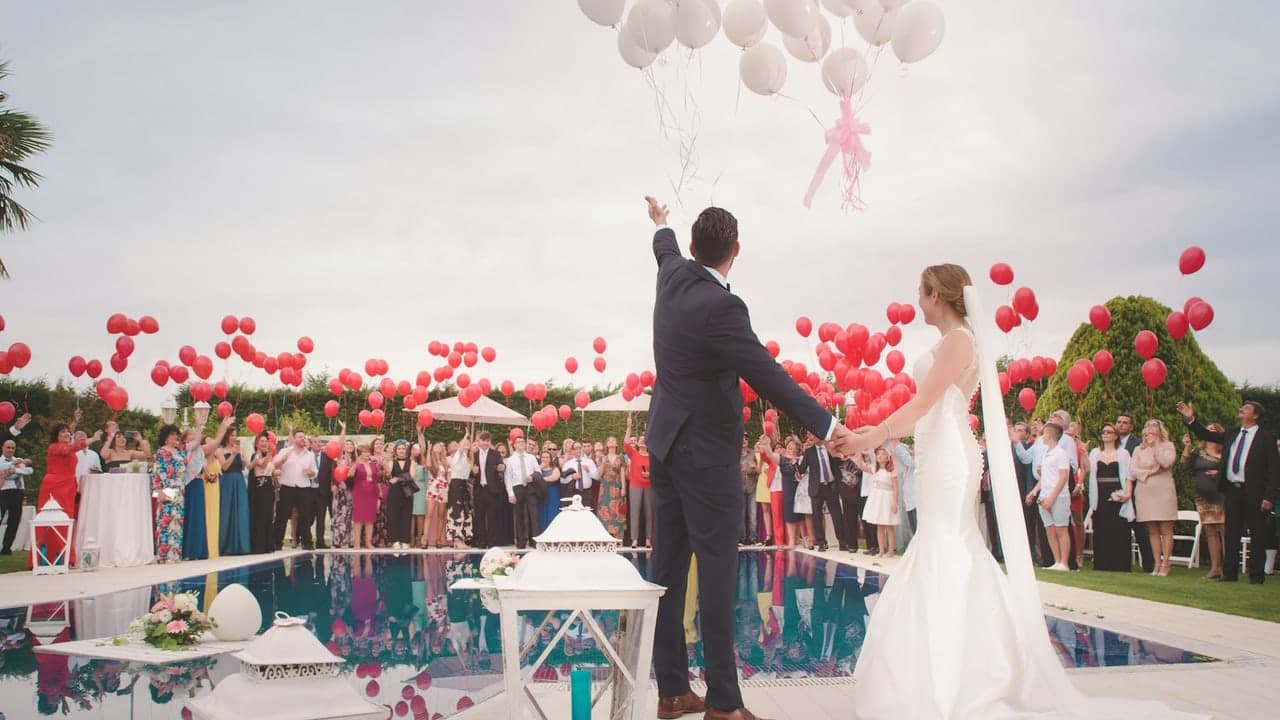
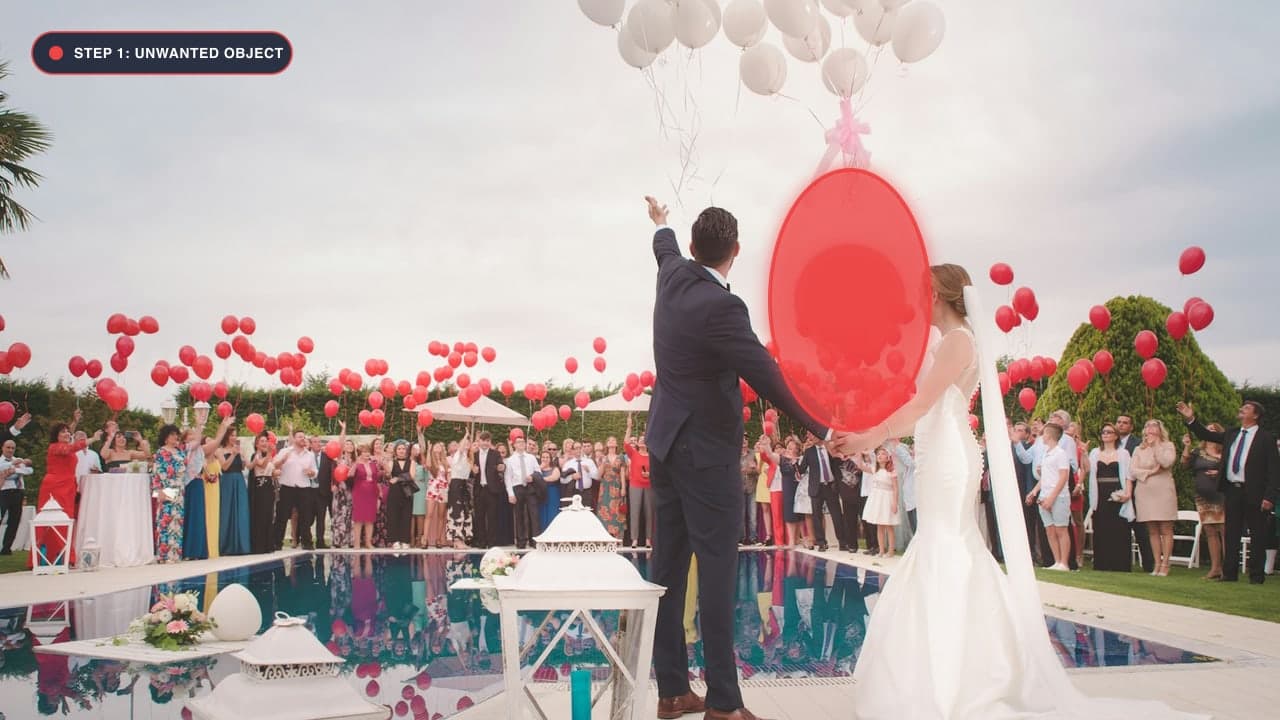
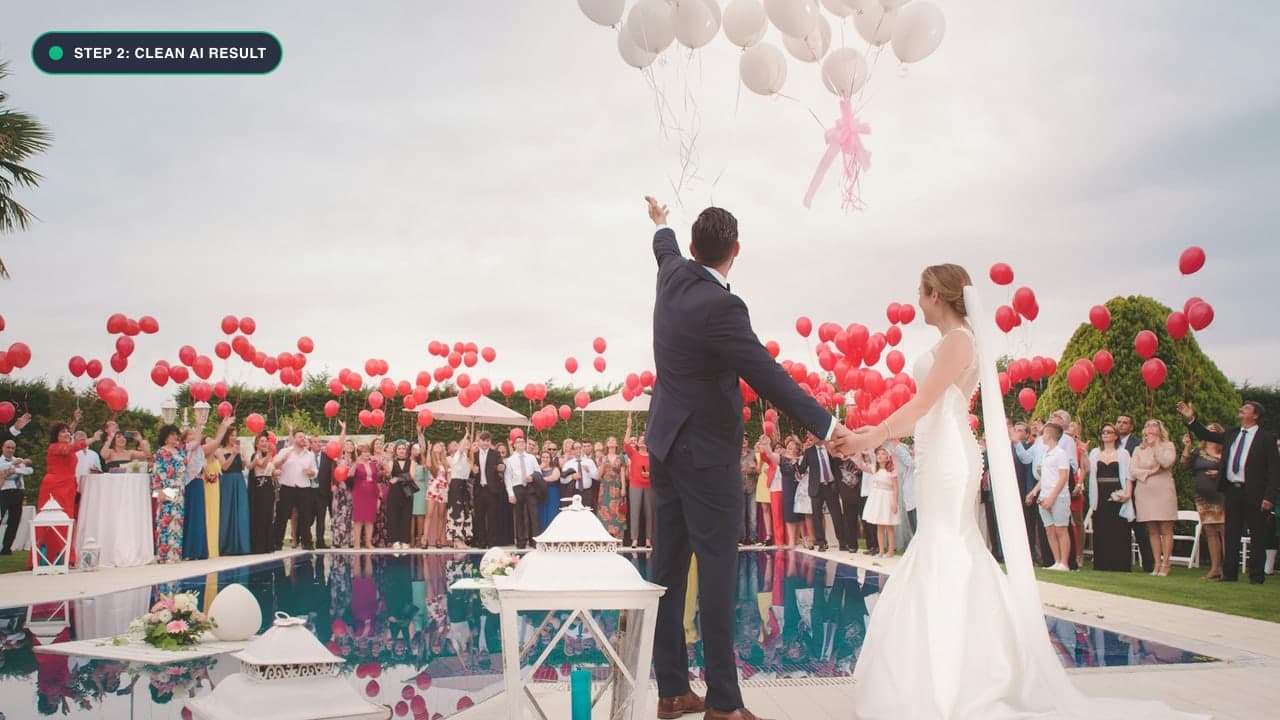
The Agony of the Accidental Photobomb
You are on vacation or celebrating a wedding. The golden hour lighting is casting a warm, flattering glow across your face. You smile, the shutter clicks, and you capture what appears to be the ultimate portrait. Then you review the photo on your phone screen and spot it: someone in the background pulling an exaggerated face, waving their arms, or walking directly between you and the camera.
Photobombers ruin countless memorable portraits every day. Previously, fixing this required either cropping the image awkwardly (destroying the visual composition) or spending an hour in Photoshop trying to separate messy hair strands from the background.
With modern deep learning inpainting, you can erase any photobomber in three seconds without sacrificing the creamy background blur (bokeh) or crisp hair strands of your main subject.
Step-by-Step Portrait Rescue Protocol
Step 1: Upload Your Portrait
Head to our dedicated Remove People Tool. Drag your portrait into the workspace.
Step 2: Zoom in to Protect Foreground Subject Edges
The crucial area in any photobomb removal is the boundary where the photobomber touches or approaches your main subject.
- Zoom in to 150% or 200%.
- Select a compact brush (15px to 20px).
- Carefully paint right along the photobomber's silhouette. If the photobomber is behind your hair strands, trace cleanly along your hair's outer boundary.
Step 3: Include Their Full Silhouette and Ground Shadows
Ensure you paint over the photobomber's entire body, including:
- Stray hands, sunglasses, hats, or backpacks.
- Cast shadows on walls, floors, or grass behind them.
Step 4: Click Remove and Behold the Magic
Click Remove Object. The neural network calculates the depth plane and background blur of the scene, synthesizing smooth, aesthetically authentic bokeh where the photobomber was standing. Click Download Image to save your restored portrait.
The 3 Types of Photobombers and How to Treat Each
Not all photobombers are created equal. Professional photo retouchers classify photobombers into three distinct physical categories, each requiring a tailored inpainting strategy:
Category 1: The Accidental Walk-Through (Distance: Far)
This is the pedestrian or tourist walking in the distant background who was simply crossing the public street.
- Inpainting Strategy: Use a compact 18px brush. Trace tightly around their shoes, body, and shadow. Because distant elements contain less high-frequency contrast, the neural model easily bridges the spatial gap using surrounding architecture or foliage.
Category 2: The Deliberate Prankster (Distance: Midground)
The person pulling a funny face, waving their hands, or holding up peace signs behind your head.
- Inpainting Strategy: Paint over their head and raised arms first. If their arms cast a shadow on a background wall or vehicle, ensure you capture the shadow boundary completely.
Category 3: The Shoulder/Body Overlapper (Distance: Foreground)
The trickiest scenario: a stranger who brushed too close to your group, causing their jacket or shoulder to physically overlap your body.
- Inpainting Strategy: Zoom in to 200%. Use a fine 10px brush to trace the exact seam where your clothing meets theirs. Paint strictly over their clothing while preserving the outer edge of your fabric. The neural model will extrapolate your shoulder line and reconstruct whatever background was hidden behind them.
Wedding and Event Photography Rescue Stories
At weddings, graduations, and milestone family celebrations, moments happen in fractions of a second. A bride and groom sharing a first look, a father wiping a tear, or a child blowing out birthday candles cannot be 're-staged'. Often, a banquet waiter carrying a tray of drinks, a guest holding up an iPad to film, or an errant child running across the aisle enters the background at the decisive moment.
Instead of discarding priceless, emotionally irreplaceable photographs, professional event photographers use our Remove People Tool to restore the sanctity and emotional focus of the frame. In less than five seconds, the distraction vanishes, allowing the viewer's eyes to land squarely on the emotion of the subjects.
Preserving Depth of Field and Bokeh
Modern smartphone portraits (iPhone Portrait Mode, Samsung Live Focus) feature artificial or optical depth of field, where the background is intentionally blurred to make the subject pop.
- When you remove a photobomber using ObjectRemover.in, our neural engine detects the defocus blur gradient of the surrounding background.
- Instead of inserting an artificially sharp patch that clashes with the creamy blur, the model matches the exact circle of confusion (CoC) and bokeh softness of the surrounding background elements.
फोटो से फोटोबॉम्बर को कैसे हटाएं - हिंदी गाइड (Bilingual Hindi Section)
अपनी बेहतरीन फोटो को बचाने के आसान स्टेप्स:
- Remove People Tool पर जाएं और अपनी फोटो अपलोड करें।
- फोटो को ज़ूम करें: फोटोबॉम्बर और मुख्य व्यक्ति के बीच की सीमा को साफ देखने के लिए स्क्रीन को ज़ूम करें।
- फोटोबॉम्बर पर लाल ब्रश फेरें: पीछे खड़े अनचाहे व्यक्ति के पूरे शरीर और उसकी परछाई पर सावधानी से ब्रश चलाएं।
- Remove Object पर क्लिक करें: एआई उस व्यक्ति को गायब कर देगा और बैकग्राउंड के ब्लर (Bokeh) और रंगों को बिल्कुल असली जैसा बनाए रखेगा।
- परफेक्ट फोटो डाउनलोड करें: आपकी शानदार पोर्ट्रेट फोटो बिना किसी रुकावट के तैयार है।
Frequently Asked Questions (FAQ)
What if the photobomber is partially blocking my shoulder?
Paint over the photobomber up to your clothing line. The AI will extrapolate your jacket or dress edge, smoothly completing the contour of your shoulder.
Can I remove multiple photobombers at the same time?
Yes! Paint over as many background individuals as necessary, then process them in a single click.
Where can I clean up other objects like trash or cars?
Use our comprehensive Photo Cleanup Tool or the Magic Eraser Studio.
Try It On Your Own Photo Right Now
अपनी फोटो से किसी भी अनचाहे ऑब्जेक्ट को हटाने के लिए नीचे दिया गया टूल आज़माएं:
Drop your photo here or browse
Supports JPG • PNG • WEBP • HEIC (Max 25MB, Native 4K)