
How to Remove a Person From a Photo (Complete 2026 Guide)
फोटो से किसी भी व्यक्ति या अजनबी को कैसे हटाएं - सम्पूर्ण 2026 गाइड

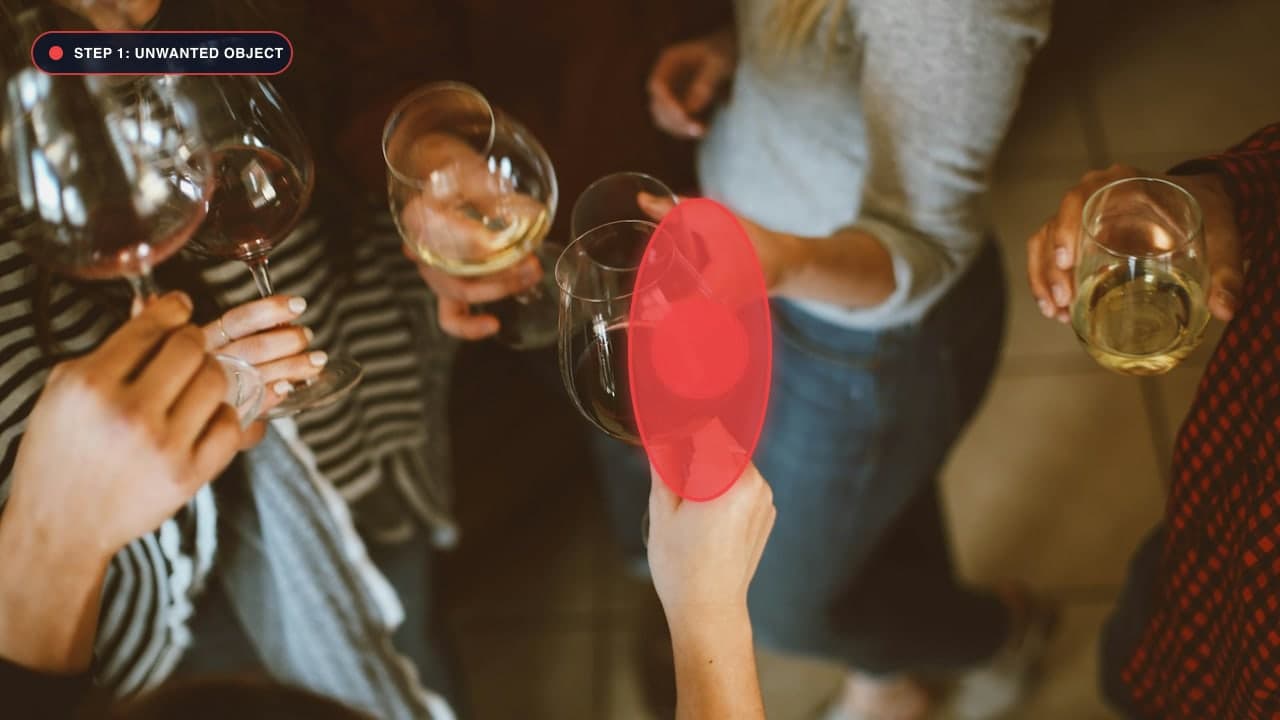

Why Removing People From Photos Used to Be So Difficult
We have all taken a photo where the lighting is sublime, the framing is balanced, and the expression is genuine—only to discover an unwanted stranger walking through the frame, a tourist gazing directly into your lens, or an ex-partner you no longer wish to display on your wall.
In traditional photo editing suites like Adobe Photoshop, removing a human figure demanded meticulous manual work with the Clone Stamp, Healing Brush, and Content-Aware Fill tools. Editors had to spend twenty minutes sampling nearby pixels, attempting to match uneven ground textures, reconstructing interrupted horizon lines, and repainting complex gradients. Worse, clone stamping frequently left tell-tale repetitive visual patterns and blurry smears that instantly betrayed the edit.
With the advent of deep learning and neural image inpainting (specifically models powered by Fast Fourier Convolutions like LaMa), erasing a person from a picture is now an instantaneous, one-click process. In this complete guide, we will walk you through the exact steps to remove any person from your photos cleanly, realistically, and 100% free using our specialized AI People Remover Tool.
Step-by-Step Tutorial: Erasing a Person Cleanly
Follow these proven steps to achieve seamless, studio-grade results on any portrait, group photo, or travel capture:
Step 1: Upload Your High-Resolution Photo
Open our Remove People From Photo Tool in your web browser. Drag and drop your image directly onto the canvas, or click Upload Image. We support JPG, PNG, WEBP, and high-dynamic-range files up to 25MB. Your photo is processed locally in your browser memory via WebAssembly, meaning your personal memories are never sent to external servers or stored in databases.
Step 2: Calibrate Your Brush Size
Selecting the correct brush diameter is crucial for clean inpainting:
- For distant background pedestrians: Use a small brush (15px–25px) to trace tightly around their silhouette.
- For close-up subjects or large groups: Use a medium brush (40px–65px) to cover the body in broad, continuous strokes.
Pro Tip: Always maintain a small 3-to-5 pixel safety margin outside the person's clothing and hair. If you leave even a sliver of their sleeve or shoe edge unmasked, the neural network may attempt to blend the original clothing color into the reconstructed background, producing muddy artifacts.
Step 3: Don't Forget the Shadows and Reflections!
The single most common mistake beginners make when removing people is brushing over the human body while leaving their ground shadow or water reflection behind. A floating shadow on cobblestones or grass immediately alerts the human eye that an element was artificially removed.
- Always paint over the cast shadow on the ground following the direction of ambient light.
- If the photo was taken near water, wet pavement, or polished marble, brush over the reflected silhouette as well.
Step 4: Click Remove and Inspect the Result
Click the purple Remove Object button. In under two seconds, the neural network analyzes the contextual surrounding pixels (trees, buildings, sky, sand, or pavement) and synthesizes realistic, photorealistic background textures to fill the void.
If a faint boundary remains due to complex background geometry, simply apply a second light stroke over the boundary line and run the tool again. Once satisfied, hit Download Image to save your clean, full-resolution photograph.
Comparison: Traditional Clone Stamp vs. Neural Inpainting
| Feature | Legacy Clone Stamping | Modern AI Inpainting (ObjectRemover.in) | | :--- | :--- | :--- | | Editing Speed | 15–30 minutes per subject | 2 to 3 seconds | | Skill Requirement | Professional Photoshop training | Zero editing experience (paint & click) | | Texture Synthesis | Copies identical nearby pixels (repetitive) | Generates novel, contextually coherent pixels | | Edge Feathers | Often blurry or smeared | Crisp, structurally accurate boundaries | | Cost | $239.88/year Adobe subscription | 100% Free, no subscription required |
Expert Tips for Complex Scenarios
- Crowded Tourist Hotspots: If you are trying to clean a photo taken at the Taj Mahal, Eiffel Tower, or a busy beach, remove tourists in multiple passes. Rather than covering fifteen people under one massive red mask, remove three to four people at a time from back to front. This gives the model maximum surrounding context to synthesize authentic architectural lines.
- Foreground Obstructions: If someone walked partially in front of your main subject (e.g., their shoulder overlaps your friend's jacket), zoom into the canvas to 200%. Use a tiny 10px brush to carefully trace the boundary where the two people intersect.
- Preserving Grain and Noise: High-ISO nighttime photos contain natural digital grain. Our inpainting engine intelligently samples the surrounding luminance noise so the filled area matches the camera sensor grain perfectly.
फोटो से किसी भी व्यक्ति को कैसे हटाएं - सम्पूर्ण हिंदी गाइड (Bilingual Hindi Section)
किसी अजनबी या व्यक्ति को हटाने की आसान विधि:
- सबसे पहले Remove People Tool पर जाएं और अपनी फोटो अपलोड करें।
- ब्रश का आकार चुनें: फोटो में मौजूद व्यक्ति के आकार के अनुसार ब्रश का साइज सेट करें।
- व्यक्ति और उसकी परछाई को मार्क करें: व्यक्ति के ऊपर लाल रंग से ब्रश चलाएं। ध्यान रखें कि जमीन पर पड़ी उसकी परछाई (Shadow) पर भी ब्रश अवश्य चलाएं।
- Remove Object पर क्लिक करें: सिर्फ 2 सेकंड में एआई उस व्यक्ति को पूरी तरह गायब कर देगा और बैकग्राउंड को प्राकृतिक रूप से भर देगा।
- HD क्वालिटी में डाउनलोड करें: 'Download' बटन पर क्लिक करके अपनी साफ और सुंदर फोटो को अपने फोन या कंप्यूटर में सेव करें।
Frequently Asked Questions (FAQ)
Can I remove an ex-partner from a couple photo?
Yes! If you are standing side-by-side with your ex, zoom in and carefully mask their body, clothes, and arm. If their hand is resting on your shoulder, brush over the hand; the AI will reconstruct your jacket or shirt fabric underneath.
Does removing a person reduce the image resolution?
No. Unlike mobile apps that downscale your pictures to 720p to save server bandwidth, ObjectRemover.in processes your image at its original native resolution up to 4K.
What is the best tool for this?
For human subjects, always use our dedicated AI People Remover or the full-featured Magic Eraser Studio.
Try It On Your Own Photo Right Now
अपनी फोटो से किसी भी अनचाहे ऑब्जेक्ट को हटाने के लिए नीचे दिया गया टूल आज़माएं:
Drop your photo here or browse
Supports JPG • PNG • WEBP • HEIC (Max 25MB, Native 4K)